Registration payments for specific sales documents shall be in the module Sale or Accounting accounting program online mKsiegowa.pl. The program supports accounting exchange rate differences.
Purpose
Make an A/R deposit into a customer's account.
Procedure
- Select the customer's account from the drop-down combo-box. If there is more than one branch/location for this customer, select the correct one from the second combo-box.
- Select the bank account of the deposit should be made to. List of Bank Accounts can be setup in Banking and General Ledger module.
- If needed , change the date of the deposit.
- Enter the full amount of the deposit.
- OPTIONALLY , enter a memo/note about the deposit.
In order that this payment apply this individual invoices, you allocate Appropriate amount against documents listed below (if any documents exist not allocated).
Tips and Tricks
- A reference number will be generated automatically. It is not, typically, a good idea to change/set this number manually.
- Exchange rates are applied automatically. If the wrong exchange rate is listed, you need to adjust it in Banking and General Ledger Tab -> Exchange Rates.
Document Description
This function is similar to a document introduced by either Deposits. The main difference lies in the fact that the program shows all unpaid invoices, which facilitates the bringing together of bank and cash payments to specific sales documents.
When you select a customer in the customer Since there is a table with all unpaid documents that client. If at a given moment, all documents are cleared, then the program does not display any documents, and allows you to enter the payment into a bank or building society from this client. You can register in this case the deposit, which will be settled invoices introduced at a later date.
The realization is similar to that described in the documentation Deposits.
The program gives another registration number for the document. We can create several drafts of documents numbering KP. How to define strings is described in Forms Setup.
Registration payment for sales documents
After selecting a customer, all unpaid documents will appear on the screen.
To enter the amount of the payment use column This Allocation. If you want to select the entire amount of the document then click All the right side of the row. The program calculates the amount of the payment in the Amount field at the bottom of the screen.
Click Add payment to process the document.
After entering the payment program generates a document type with the symbol CP.
In the next screen, you can:
- Use the option Print The Receipt
- Preview General Ledger entry for this receipt
- Enter the next payment
Furthermore, the document appears in the Bank Account Inquiry.
Submitted documents can be viewed in the Journal Inquiry Accounting module.
These documents can be also searched in Sale -> Customers Transaction Inqiury.
The recording of the payment document
Payment document is stored in an accounting journal as a Customer Payment.
Diagram of accounting is as follows:
| Account Name accountant | Where it can be set | Page |
|---|---|---|
| Account Receivable | Customers | Credit |
| Account Billing selected when entering the document | Bank Accounts Configuration | Debit |
Documents currency - accounting of exchange differences
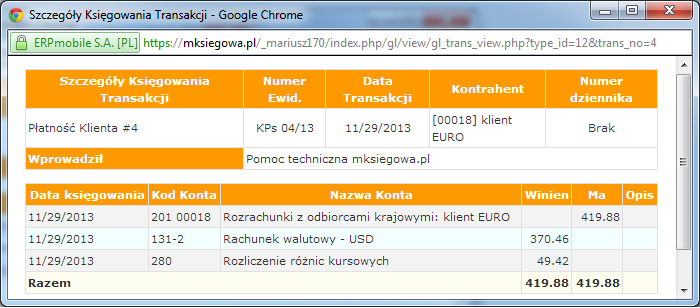
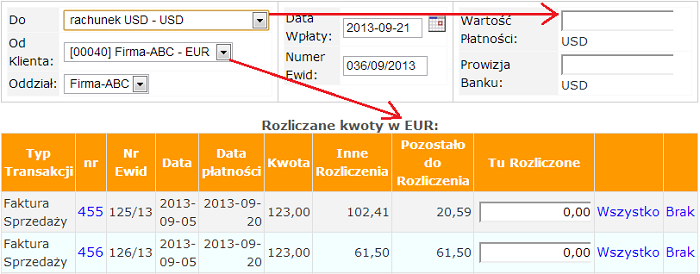
If the payment document currency account is settled invoice in a different currency, the program allows you to enter the two amounts in the respective currencies. Because the payment document is posted in the PLN, the program converts any amount of set rates. Any difference will be credited to the account of exchange rate differences.
Enter the payment amount in the currency of the bank account (or cash), and the amount we charge document currency counterparty:
The potential differences resulting from the conversion rates of the two currencies will be posted automatically. Booking might look like this: