

General Program Settings - Company Setup
1. Introduction
General Settings are located in the Settings module of the online accounting program mKsiegowa.pl. The screen layout changed slightly starting from version 3.3.18, and this version is described in this documentation.
In the General Settings section, you will enter the basic details of the business entity you represent so the system can correctly print accounting documents. The information should reflect actual data. It will be used solely for proper system operation. You can read more in the security policy. Of course, at any point while working with mKsiegowa.pl, you will have access to your data and the ability to modify it later.
Fig. General Settings Screen
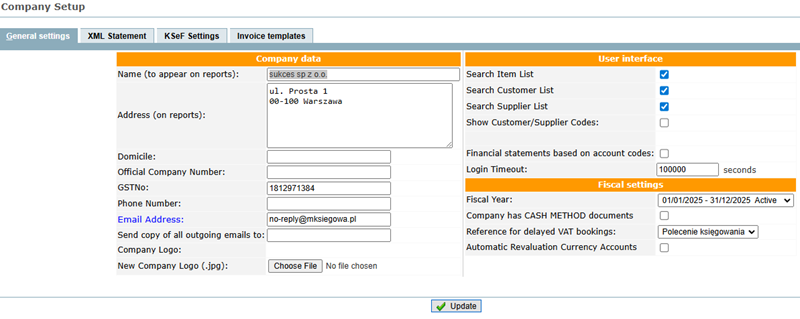
2. Basic Settings
Name – the full name of the business entity that will appear on all documents generated by the mKsiegowa.pl system.
Address, Phone number, Fax number, email address, REGON, NIP — these are the business entity details that will appear on printed documents.
Send copies of outgoing emails to: – enter the email address where you want to receive copies (cc) of emails sent from the program. More details in the article: Sending documents by email
Logo – you can upload a logo from your disk (jpg format). It will appear on documents generated by mKsiegowa.pl.
Also print Company Name – if you want the company name entered in the Name (for printouts) field to appear on documents alongside the logo, select this option.
3. Settings for XML Files Sent from the Program
In this section, you must enter all basic entity details. These details are used to generate XML files such as JPK and financial statements.
4. KSeF Configuration
In the KSeF Settings tab, you can configure sending electronic invoices to the KSeF system.
The screen displays the NIP number set in the General Settings tab. You must generate an authorization token or certificate for this NIP in the KSeF system (Taxpayer Application or the Certificates & Permissions Module made available by the Ministry of Finance). This allows invoices to be sent directly from mKsiegowa.pl to KSeF.
Note: The token or certificate must be assigned to the entered NIP number in the context of the user accessing KSeF. More information is available on the Ministry of Finance website.
Detailed token/certificate configuration is described here: Cooperation with KSeF.

Note: the program also allows test operations in the DEMO KSeF environment, which do not have legal consequences. Selecting the PROD platform means that invoices sent from the program meet legal requirements.
Note: if the KSeF Settings tab is not visible, please contact us via the contact form.
5. User Interface Settings
Search Item List – selecting either option changes the search method. If the option is not selected, the program displays the full list of products. When there is a large number of entries, this method is inefficient. In such cases, selecting the option is recommended.
Note: If the Search customer List option is enabled, the customer list in sales documents allows to select a customer by part of name or NIP (Tax ID). The program will display only customers whose name or NIP contains the typed fragment.

Search Supplier List – selecting this option changes the search method in the suppliers database and when entering purchase documents. If not selected, the entire drop-down list is shown. When there are many entries (over 100), this is inefficient. With the option enabled, typing a few characters in the Select supplier field filters the list.
This behaviour is described in more detail in the navigation section.
Show Customer/Supplier Codes – enabling this option displays codes (analytical account numbers) in the customer and supplier databases:
Note: for Suppliers, displaying analytical codes works only when Select suppliers by filtering is disabled.
Login timeout – the period of user inactivity (in seconds) after which the system requires password entry again. This helps protect accounting data against unauthorized access. More details in the security policy.
If the session expires and the system locks, requiring you to re-enter the password, no unsaved documents will be lost. After re-entering your password, the system returns to the previously opened tab.
6. Accounting Policy Settings
Fiscal year – defines the active fiscal (operational) year in which entries are recorded. Select a fiscal year from the list of all defined fiscal years.
Additional fiscal years can be added in Settings -> Fiscal Years.
Depending on configuration, the program can block entering documents into other accounting years than the one selected. An additional safeguard is Journal Closing, which enables blocking entries in smaller periods (usually monthly).
Cash method documents – enables the cash accounting method.
Automatic Revaluation of Foreign Currency Accounts – if enabled, each accounting operation on a foreign currency account such as Deposit, Withdrawal, Supplier Payment, Customer Payment or Transfer automatically triggers a journal entry:
- Foreign currency account / Exchange differences / Credit
- Exchange difference settlement account / Exchange differences / Debit
if the account balance after conversion is higher than the balance of the corresponding accounting account.
The journal entry is reversed if the converted balance is lower than the accounting account balance:
- Foreign currency account / Exchange differences / Debit
- Exchange difference settlement account / Exchange differences / Credit
The exchange difference amount equals the difference between the account’s currency value converted at the previous day's rate and the current accounting account balance.Example:
- bank account balance: 100 EUR
- previous day's exchange rate: 4.14 PLN per EUR
- accounting account balance: 395 PLN
Calculated exchange difference: 100 * 4.14 − 395 = 19 PLN
The journal entry will be: - Foreign currency account / 19 PLN / Credit
- Exchange difference settlement / 19 PLN / Debit
7. Saving Settings
After entering all required data, save it by clicking the  button below the form. The system will save the data and display a green message company data updated.
8. Calculate sales price from standard cost
You can have automatic sales price calculation for items that do not have any prices in Sales Prices entered. This works independently from the Base Price List setting, but if the factor is set in the other Sales Type Lists it works together with them.
Preparing and operation
Go into Setup tab - Company Setup. In the field, Base for auto price calculation, set a Base Price List. In the field, Add Price from Std cost, enter the % that you want to increase from the average standard costs for the items not listed in the Item Price List. If this value is empty there are no automatic price calculations. BE aware that the value of 0 in the field will calculate the price to be the same as the Std cost.
So to remove the calculation, just empty the field.
If the average standard costs in the system for any specific item is 0, the calculation would result in 0 as well.
The field, Round to nearest xxx gr, will round the calculated result to the nearest gr entered. If you have 2 decimals in the amounts the value 100 would be divided by the xxx value. If you have 3 decimals in the amounts the value 1000 will be divided by the xxx value. If there is no fraction, the value will be rounded up to the nearest xxx value. If there is a fraction, the value xxx will be subtracted from the value (100-xxx) or (1000-xxx).
Example
Let us take an example:
- Item standard cost = 20.77
- Decimals = 2
- Value to increase the items with = 70 (%)
- Round to nearest value = 5
The pow(10, 2) = 100. 100 divided by 5 = 20 and no fraction. Price after increase = 20.77 * (1 + 70 / 100) = 35.309. Rounded to nearest 5 gr value = 35.35;
Let us set the Round to nearest value = 95.
The value 100 / 95 = 1 and a fraction of 95. The Price will still be calculated to 35.309. Now the value will be rounded to 36.00 and subtracted by (100 - 95) = 35.95.
So you see it is very flexible. If you have larger prices you can even round up to nearest 10, 100 by setting the rounding to nearest value = 1000 or 10000.
But take care if you have different prices, large prices and small prices. It might not be a good idea to round a value of 10.77 to 100.
If there is a base price list set and for instance a factor 0.7 the price list in foreign currencies are calculated as well. And again, if a 'Round to nearest' value is set to other than 1 the foreign prices are rounded in the same way as explained above. This new price calculation should work with sales kits too.